I Ditched Premiere and Screen Studio for Tight Studio: An Honest Review After 30 Days of Shipping Demos
How a free Mac app replaced my entire 4-tool product video stack — and why your next software demo doesn't need 3 hours of keyframing.
Reading Time: 7 min read · Published in Product Design & Founder Tools
If you’ve ever built a software product, launched a feature, or tried explaining a complex workflow to customers, you know the quiet nightmare that is producing a "simple" demo video.
The standard ritual usually looks something like this:
- Record raw takes with QuickTime or Loom.
- Realize you choked on minute two, your mouse was darting erratically like a caffeinated hummingbird, and your desk was a mess.
- Import the footage into Final Cut Pro, Premiere, or After Effects.
- Spend the next two and a half hours manually keyframing camera zooms, cropping out notification popups, adding blur masks over sensitive API keys, and adjusting easing curves.
- Export a 400MB file and wonder why you didn't just write a 2,000-word blog post instead.
A month ago, I stumbled upon Tight Studio, an all-in-one screen recording and editing suite built natively for Apple Silicon Macs.
The website promised: Smart auto-zoom, silky cursor smoothing, AI voiceovers, multi-clip timeline, built-in teleprompter, and zero watermarks on the free tier.
I was skeptical. In the SaaS world, "free screen recorder" usually means “Enjoy this 720p potato export with our massive logo stamped across your forehead.”
After using Tight Studio exclusively for product updates, onboarding guides, and customer walkthroughs over the past four weeks, here is my completely honest review of what works, what surprised me, and where it fits among giants like Loom and Screen Studio.
1. The Core Magic: Zero-Keyframe Smart Auto-Zoom
The feature that initially hooked me—and the reason people pay top dollar for dedicated demo tools—is smart auto-zoom.
When you record your screen, Tight Studio tracks your mouse clicks, cursor trajectory, and keyboard inputs in the background. When you finish recording and jump into the editor, it automatically generates smooth, buttery camera pans and zooms directly onto the buttons and menus you interacted with.
[Traditional Workflow]
Raw Recording ➔ Import to NLE ➔ Add Scale Keyframe ➔ Add Position Keyframe ➔ Adjust Bézier Curves (2-3 Hours)

[Tight Studio Workflow]
Hit Record ➔ Click around UI ➔ Stop ➔ Perfect Cinematic Zoom Applied Automatically (10 Seconds)
What impressed me most was the cursor smoothing engine. Even if you have nervous mouse twitches or jump between tabs quickly, Tight Studio strips away the micro-jitter and interpolates a smooth, intentional-looking cursor glide.
2. Multi-Take Freedom: No More "One-Take Wonder" Pressure
Most lightweight screen recorders force you into a corner: if you fumble your words or misclick at the 4-minute mark of a 5-minute video, you either have to live with the mistake or scrap the entire recording and start over.
Tight Studio solves this with native multi-clip recording:
- Scene 1: Record your intro.
- Scene 2: Pause and capture the core feature interaction.
- Scene 3: Re-record your checkout flow until you get it perfect.
- Timeline: Slice, reorder, and trim clips inside the same project timeline.
You can also import external assets—like your branded company title card, an intro animation, or an end-screen CTA image—directly into the same timeline without launching a secondary video editor.
3. The Unsung Hero: The Ghost Teleprompter
If you’re someone who constantly looks away from the camera to peek at bullet points on a second monitor, this feature alone will save you hours.
Tight Studio includes a built-in on-screen teleprompter widget.
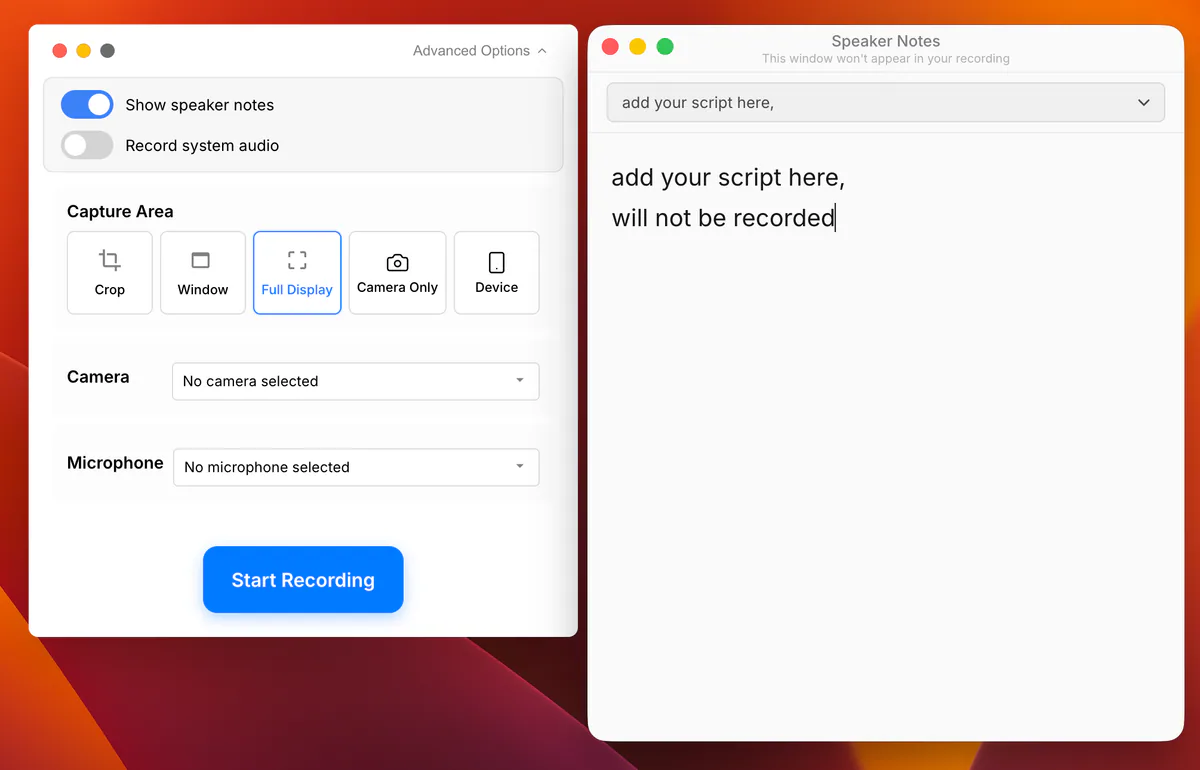
Because the script box floats right beneath your webcam lens, your eye line stays glued to the camera. Best of all: the teleprompter overlay is completely excluded from the captured recording buffer. Your viewers never see it.
4. Edit Your Voice Like Text (AI Narration & 20s Voice Cloning)
We’ve all had this happen: you record a 3-minute demo, send it to your team, and realize you said "Version 2.4" instead of "Version 2.5", or mispronounced a client's company name.
Normally, that means setting up your mic, matching the room acoustics, and re-recording the entire audio track.
Tight Studio tackles this with two AI audio features:
- Natural AI Narration: Type or paste your script, and let natural-sounding synthetic voices generate studio-grade narration directly synced with your screen actions.
- 20-Second Voice Cloning: By recording a quick 20-second vocal sample, you can clone your own voice profile. If you have a typo or need to update a pricing number next month, you literally edit the text in the script panel, and Tight Studio re-renders that audio snippet in your exact voice.
5. Mobile & Dual-Screen Demos (iPhone / iPad over USB)
If you build cross-platform apps or responsive web tools, showing mobile interactions alongside your desktop view is notoriously clunky.
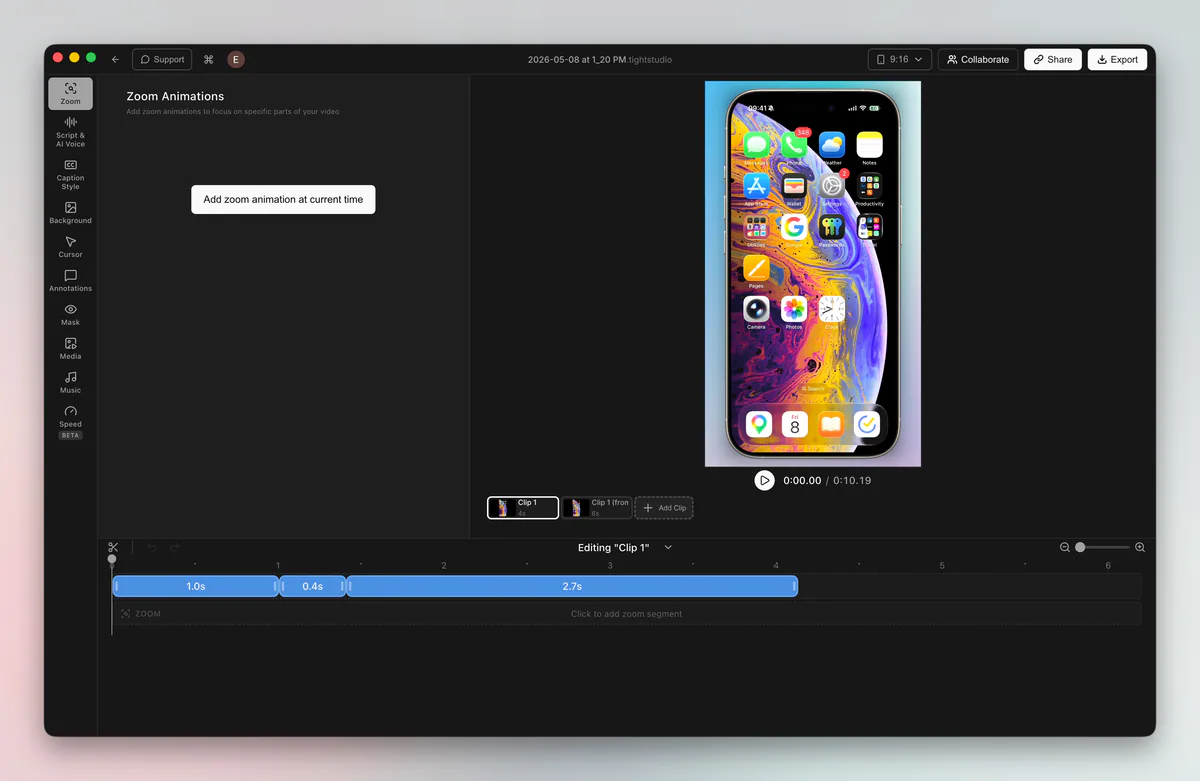
With Tight Studio, you can plug your iPhone or iPad in via USB, select it as a video source, and record the mobile device screen simultaneously. You can then toggle between Picture-in-Picture, Split Screen, Mobile-focused, or Desktop-focused layouts with a single click in the layout bar.
6. How Does It Compare? (Tight Studio vs Loom vs Screen Studio)
To give you an objective picture, here is how Tight Studio stacks up against the other tools I've used:
| Feature | Tight Studio | Screen Studio | Loom | OBS Studio |
|---|---|---|---|---|
| Primary Focus | High-polish demos & tutorials | High-polish Mac demos | Fast async team messages | Live streaming & multi-source |
| Auto-Zoom & Smoothing | ✅ Yes (Automatic) | ✅ Yes (Automatic) | ❌ No | ❌ Manual scene switching |
| Multi-Clip Editing | ✅ Full multi-take timeline | ❌ Single take only | ⚠️ Basic trim | ❌ No built-in editor |
| On-Screen Teleprompter | ✅ Built-in | ❌ No | ❌ No | ❌ Requires plugins |
| AI Voice & Voice Clone | ✅ Yes | ❌ No | ⚠️ Auto-transcription only | ❌ No |
| iPhone/iPad USB Capture | ✅ Built-in | ⚠️ Limited | ❌ No | ⚠️ Complex setup |
| Free Tier Watermark | 🟢 No Watermark | 🔴 Paid only ($89+) | 🟡 5-min limit / basic | 🟢 Open source |
| Collaboration & Sharing | ✅ Web links & Workspaces | ❌ Local export focus | ✅ Cloud instant links | ❌ Local export only |
The TL;DR Breakdown:
- Use Loom if you need to shoot a quick 60-second bug report to an engineer in Slack where visual aesthetics don't matter.
- Use OBS if you are live-streaming on Twitch or doing multi-input broadcast switching.
- Use Tight Studio if you want your product videos, launch teasers, YouTube tutorials, and onboarding walkthroughs to look like a dedicated motion designer crafted them—in under 10 minutes.
7. Pricing Breakdown: Is the Free Plan Really Usable?
One of the most pleasant surprises was the transparency of their pricing model:
- Free Plan ($0/forever): You get all core motion features—Smart Auto-Zoom, cursor smoothing, customizable cursors, styled captions, dynamic canvas backgrounds, background music, video clipping, annotations, and trial access to multi-clip and AI credits. Crucially: No watermark.
- Plus Plan ($9/month, billed yearly): Unlocks unlimited multi-clip recording sessions and unlimited permanent shareable video links.
- Pro Plan ($24/month, billed yearly): Adds 1,000 monthly AI credits for AI voiceovers, voice cloning, AI media generation, and team collaborative workspaces.
For solo makers and developers building portfolio projects or early-stage startups, the free tier is remarkably generous.
8. Minor Downsides & Room for Improvement
To keep this review 100% legit, there are a couple of limitations you should know before jumping in:
- Mac-First Ecosystem: Tight Studio is currently built for macOS (Apple Silicon). If you are on Windows, you’ll have to join their waitlist for now.
- Not a Replacement for Heavy Multi-Track NLEs: If you need 3D particle effects, green-screen chroma keying, or 16 audio tracks with parametric EQ, this isn’t Premiere Pro or DaVinci Resolve. It is intentionally streamlined for screen capture and product storytelling.
The Verdict
In a world where product launches are judged in the first 5 seconds on Twitter/X, LinkedIn, and Product Hunt, raw and clunky screen recordings just don’t cut it anymore.
Tight Studio bridges the gap between the speed of Loom and the cinematic polish of After Effects. It turned what used to be a dreaded half-day editing chore into a 10-minute routine for my feature releases.
If you’re on a Mac and want your product to look as sharp as the code behind it, it’s well worth downloading the free version and taking it for a spin.
We also tested a different kind of founder tool: Phonecall, for calling real landlines and mobiles from a browser tab without a SIM or a monthly plan.